
Create WARMKEY account from android phone and authorize to pair it with WEB.
Preparation
- Prepare an android phone that are secure and haven't been rooted before.
- Prepare a data cable, better it is genuine cable that originally come along with phone.
- On android phone, download and install APP from https://play.google.com/store/apps/details?id=com.madxradicle.warmkey.
- Disconnect the phone from Internet or turn on its flight mode. Now your phone is cold wallet.
- Please choose
Chromebrowser.
Check Newly Created Account
- On APP, click
Create New Account, fill in PIN number, then write down and verify your new recovery phrase (mnemonic code). Please read and understand the WARNING message!
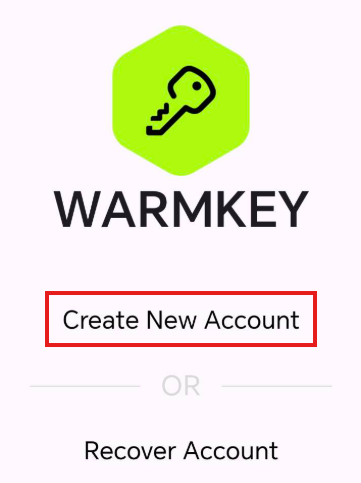
On APP.
- On APP, now login by verify with your previous PIN number, you will now at HOME page where will show your only one account. The display address is your WARMKEY account.
Authorize & Pair Your Account With WEB
- On your desktop's browser, do navigate to https://secure.warmkey.finance, click
Setup New Devicethen clickNEXTbutton and follow all the steps on screen until you seeConnect For Account Authorizationbutton.
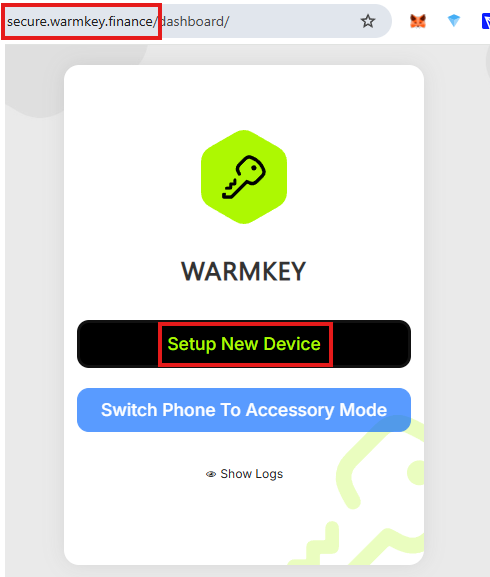
On WEB.
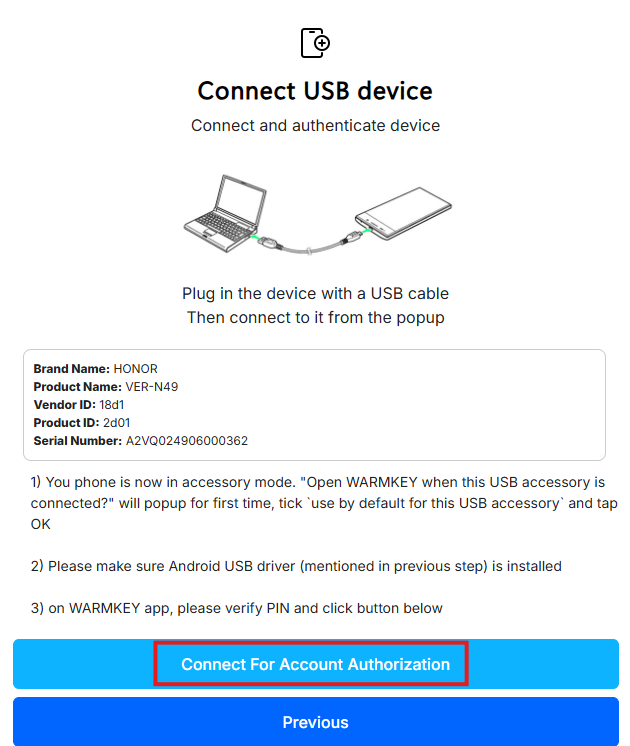
On WEB.
-
Do click
Connect For Account Authorization, and you will see there is account authorization dialog popup on APP. Tick and authorize it.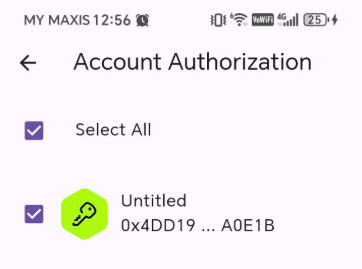
On APP.
-
On WEB, screen below means WEB was paired with APP successfully. Choose your account and you will be redirected to setup account profile.
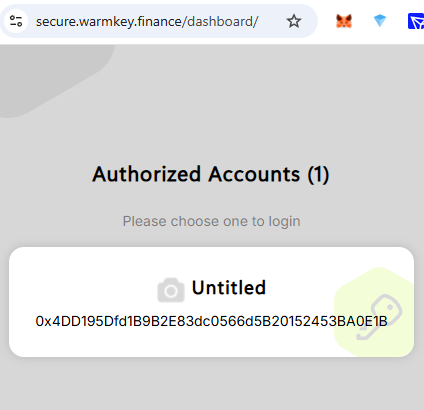
On WEB.